Whether you're a beginner or looking to master the next level,
our step-by-step guides are here to help you every step of the way.
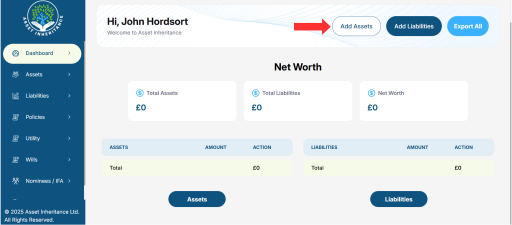
1. Click on the "Add Assets" button
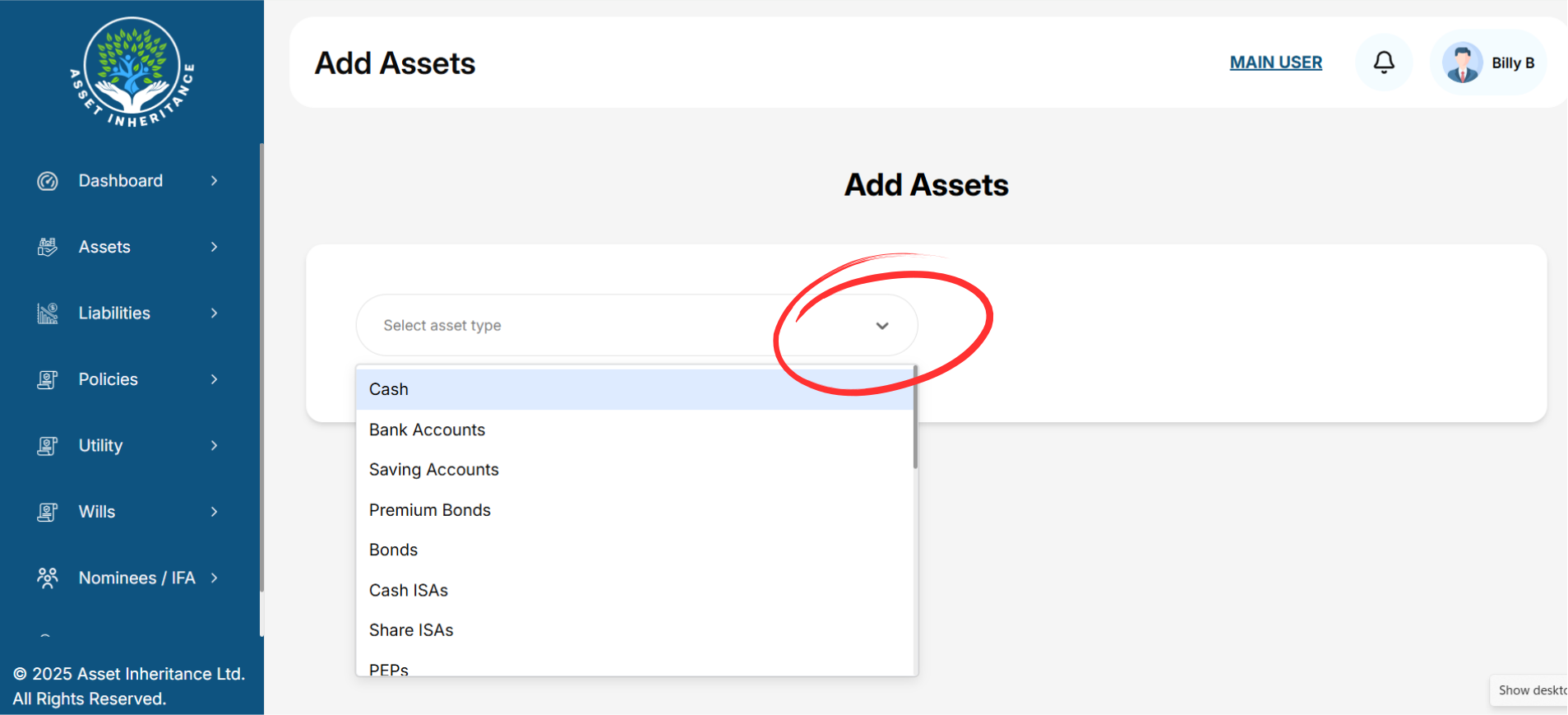
2. From the Dropdown, select the Asset Type you want to add, such as Cash, Savings Account, etc.
If your Asset Type is not listed, you can use one of the Miscellaneous fields available.
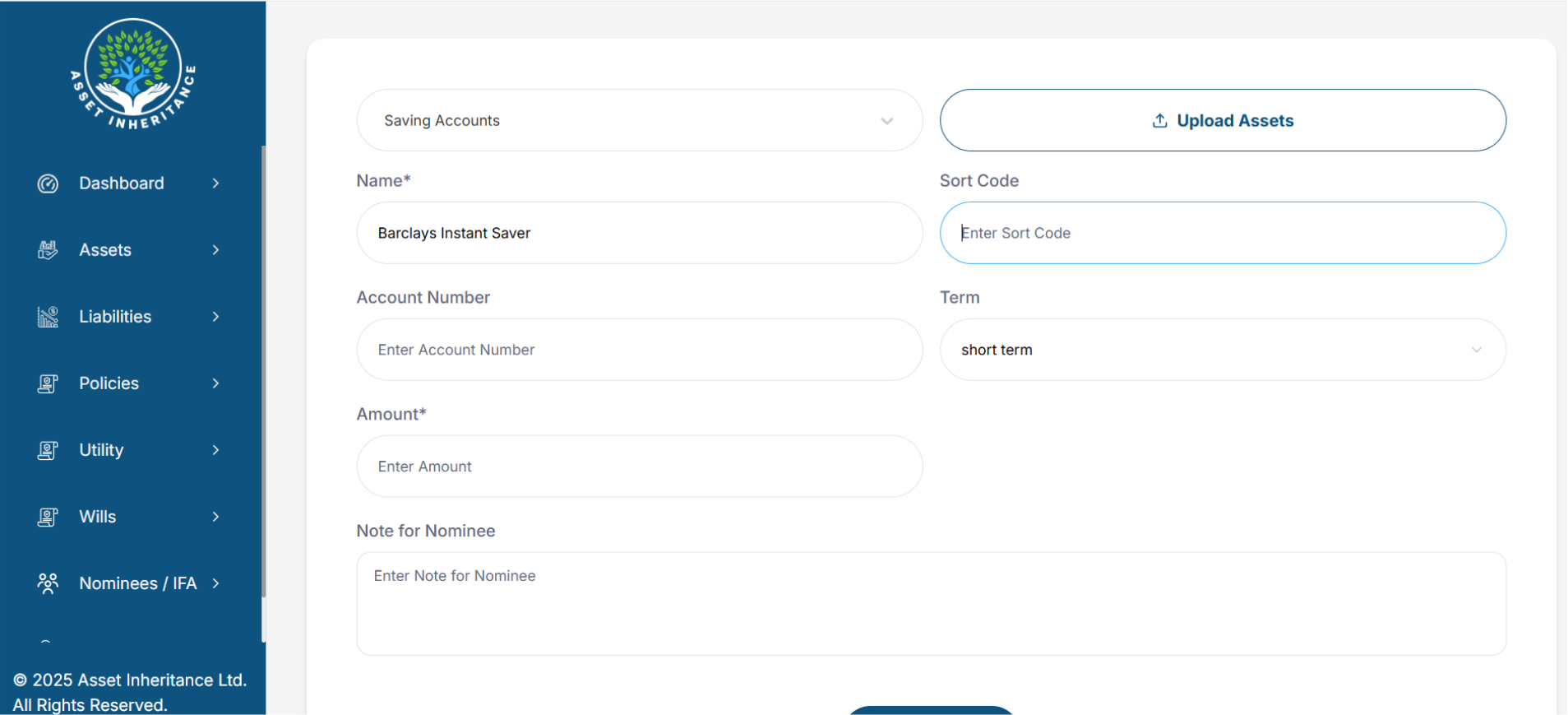
3. Enter the Asset Type details. Fields marked with and asterix/* are mandatory. If you don't want to enter a real value, please enter 0.
You can change the Term to indicate how quick access to the asset is.
You can also enter a note that a specific Nominee can see, e.g. "the cash is under the bed".
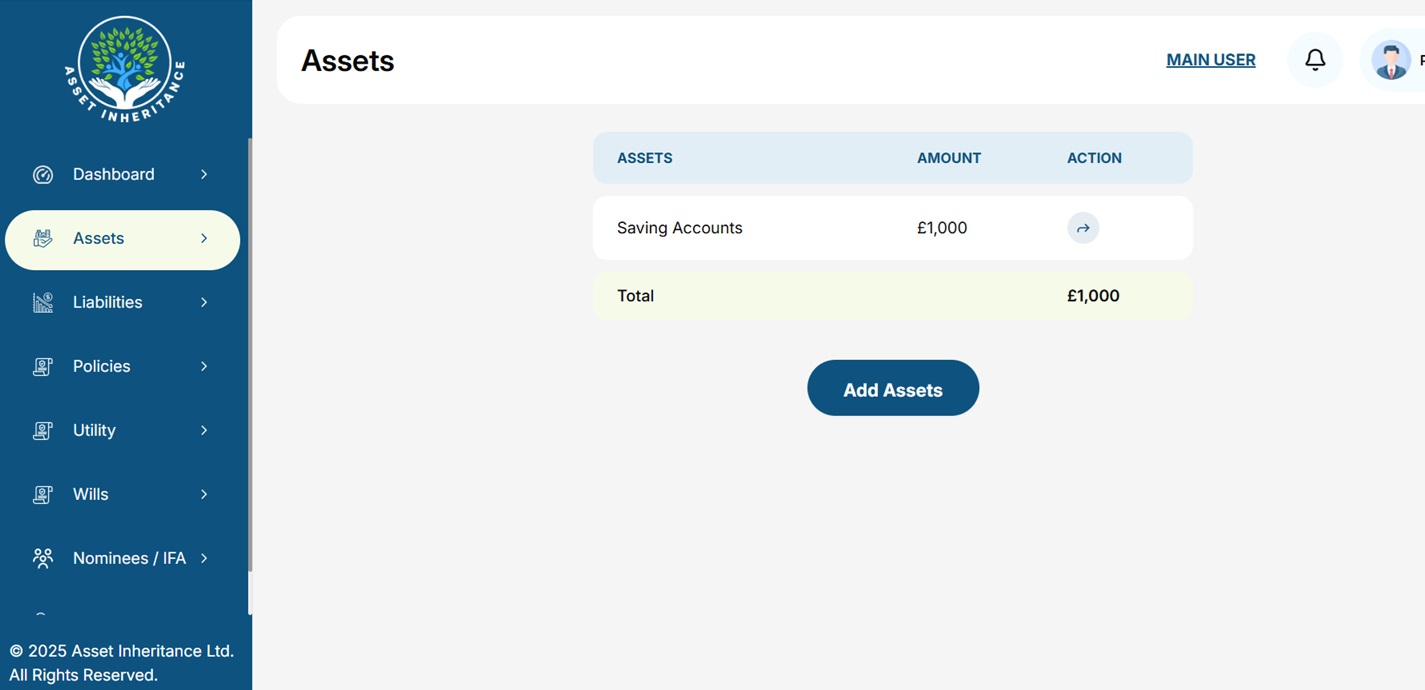
4. The Asset will be added to your list.
You can then add more Assets if required.
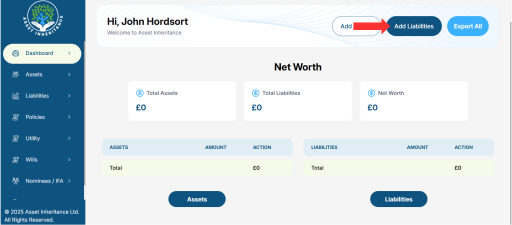
1. Click on the "Add Liabilities" button
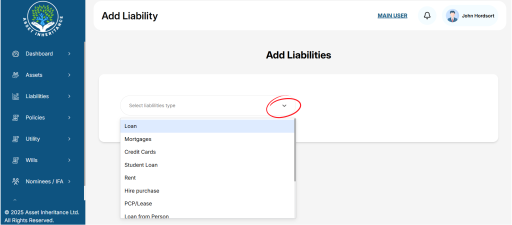
2. From the Dropdown, select the Liability Type you want to add, such as Loans, Mortgages, Credit Cards, etc.
If your Liability Type is not listed, you can use one of the Miscellaneous fields available.
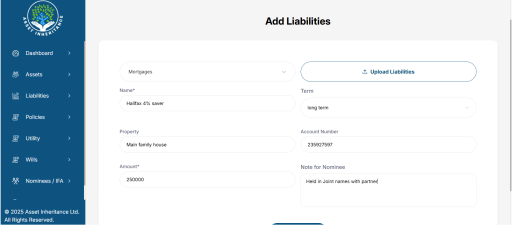
3. Enter the Asset Type details. Fields marked with and asterix/* are mandatory. If you don't want to enter a real value, please enter 0.
You can change the Term to indicate how quick access to the asset is.
You can also enter a note that a specific Nominee can see.
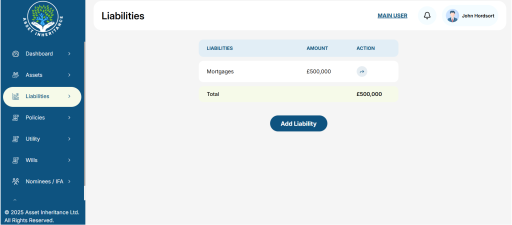
4. The Liability will be added to your list.
You can then add more Liabilities if required.
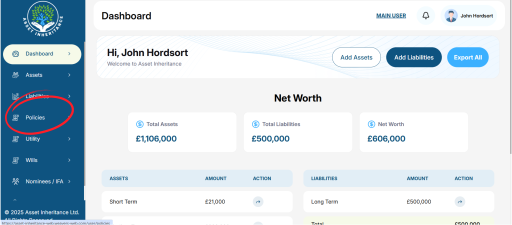
1. Select "Policies" from the menu bar.
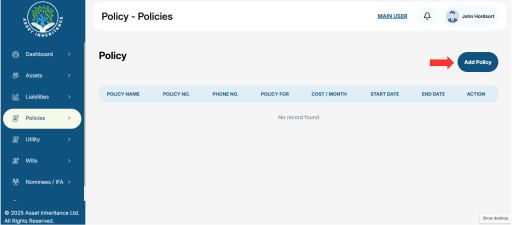
2. Click the "Add Policy" button
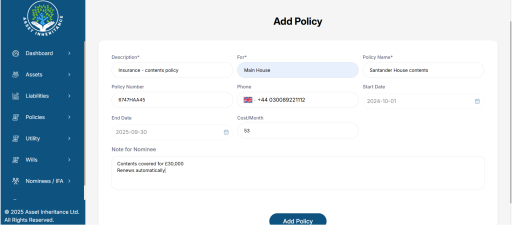
3. Fill in the required data. You can also add notes that Nominees can see.
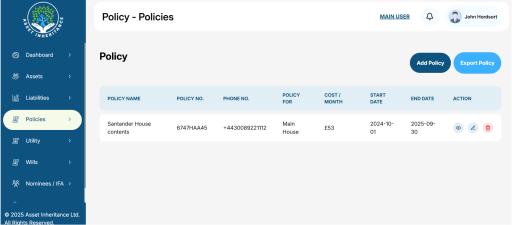
4. The Policy will be added to the portal
Asset Inheritance, probate, on my death, if i die, what happens if i die, my finances after i pass, after my death, my death file, death vault, death folder, asset folder, asset box, asset vault, family finances